Step By Step
- Inform the policyholder that you have just sent a link via text/email.
- Have them open the message and tap on the Link.
- The link will open a page where they will be prompted to add photos/videos and/or document signatures.
Instruct them to tap on the Camera Icon of a room to begin taking photos.
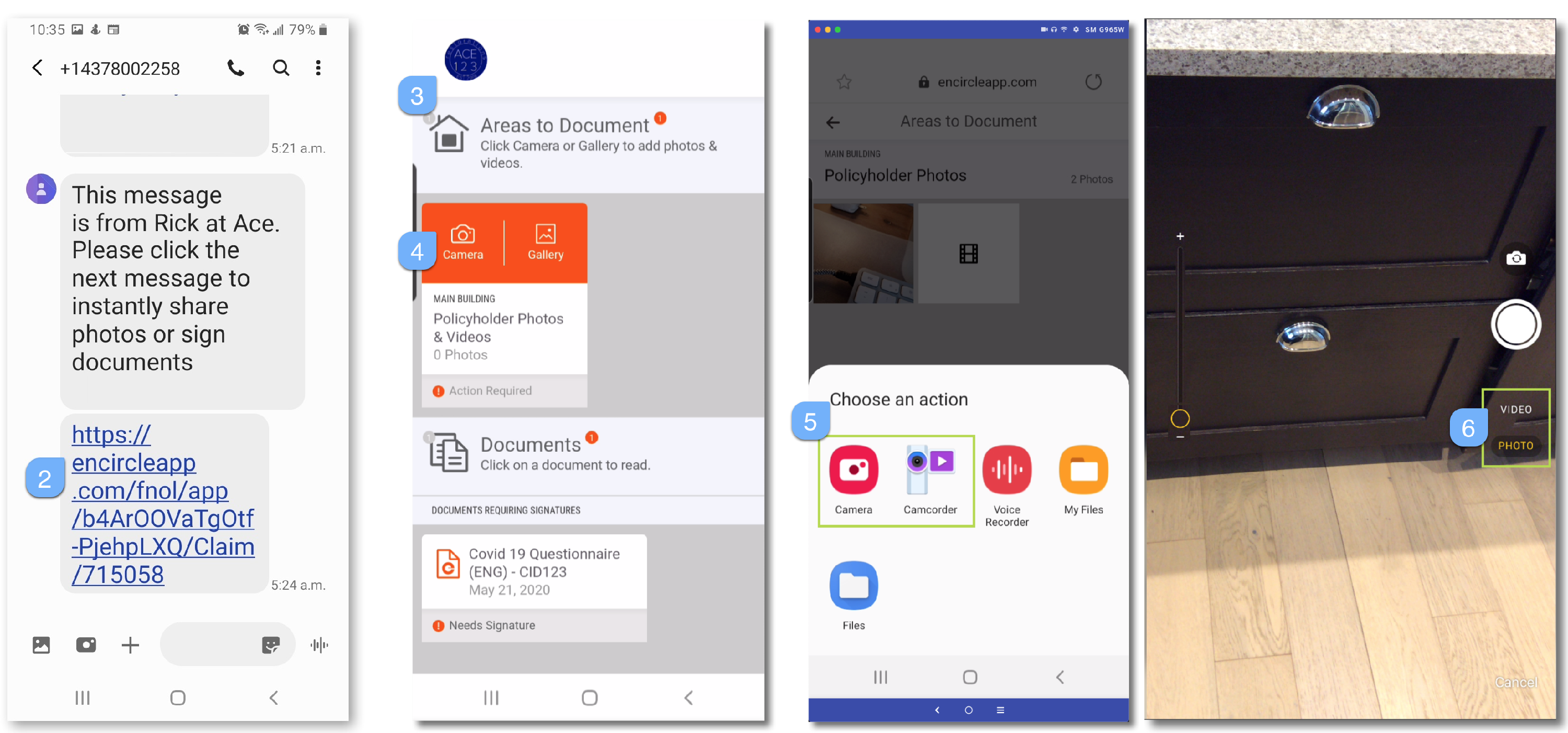
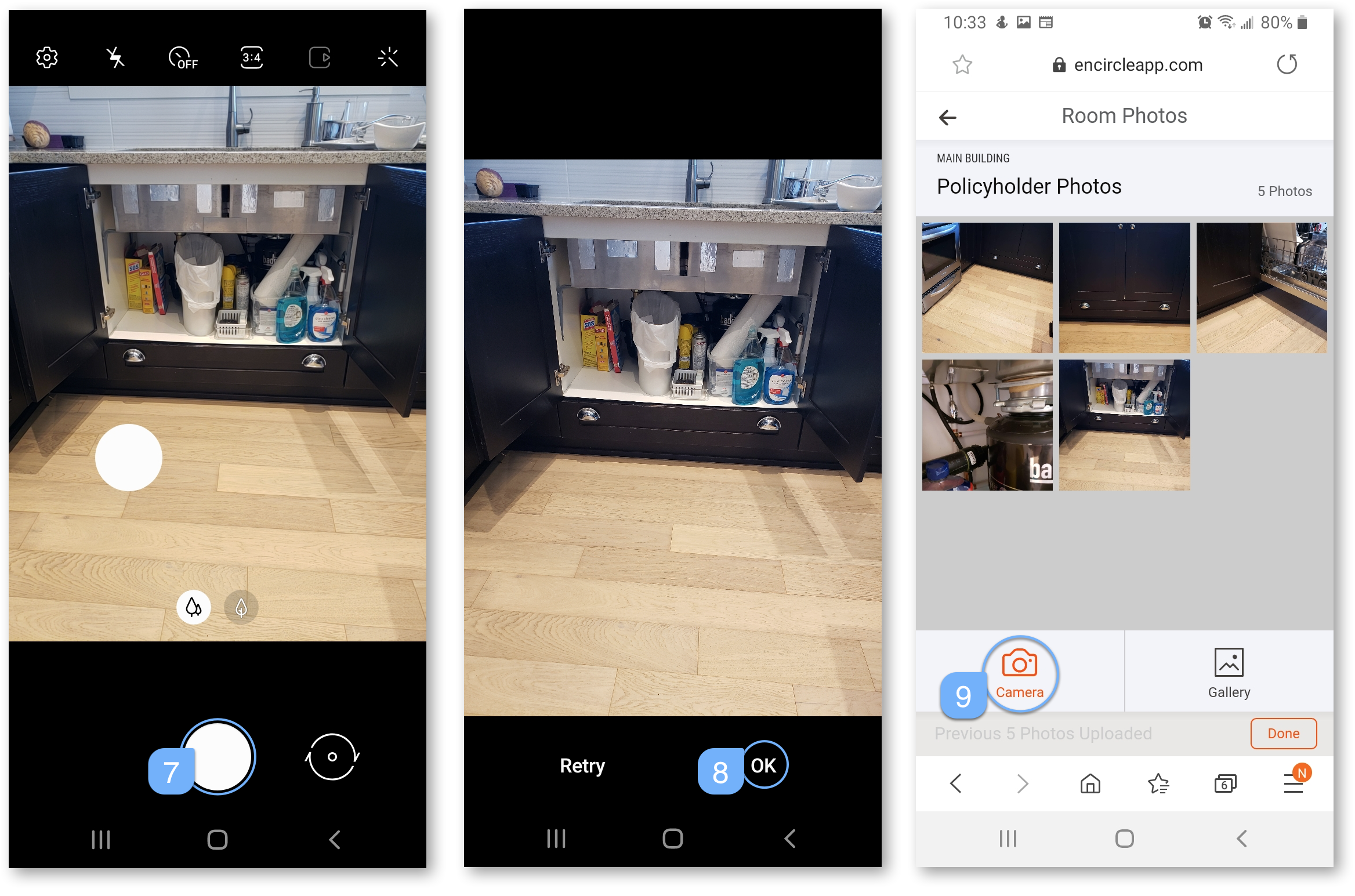
- The camera will open and they can tap the Camera Button to take a photo or Video Record to capture video.
- Tap OK or Use Photo or Retry.
- Add additional photos by tapping the Camera icon again, or Done.
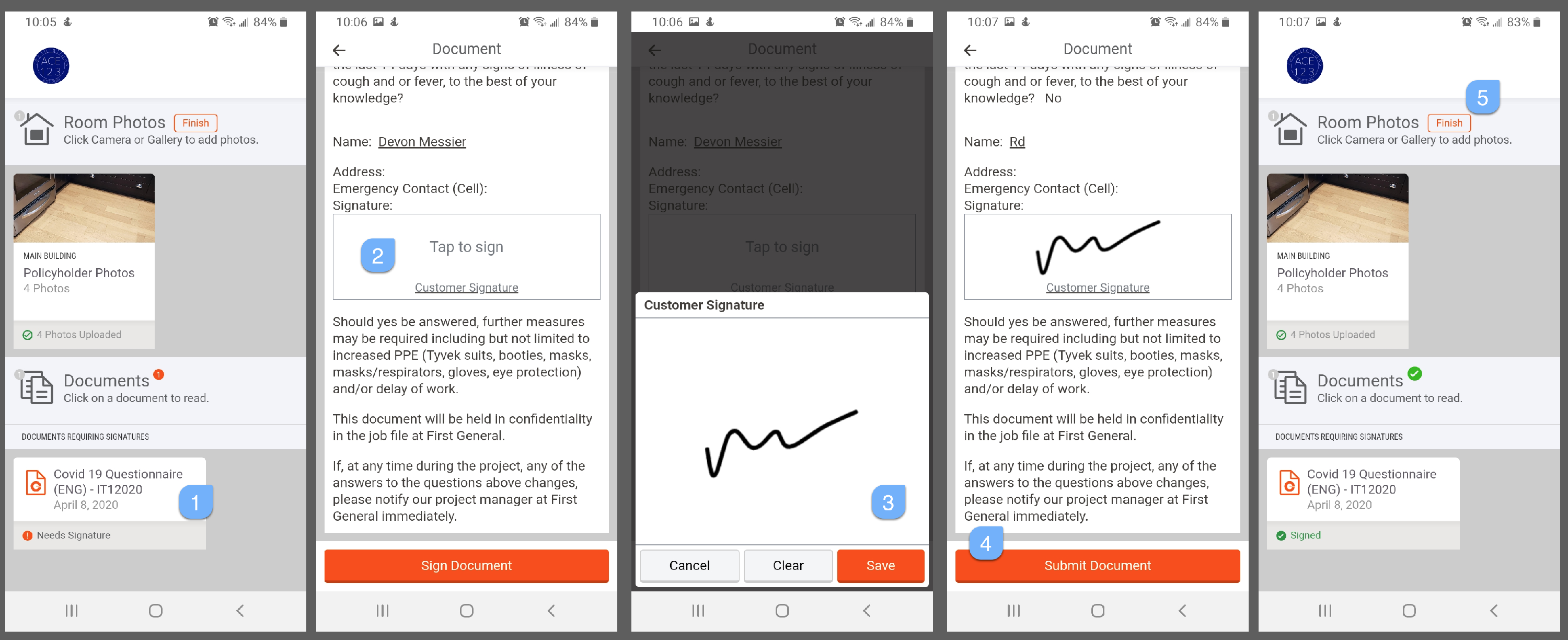
The policyholder can review and sign documents remotely if you have added included them in the link.
The screens below represent the policyholder or client view on their mobile device after opening the Link.
- Tap on the document to review and sign.
- Review the document and tap Sign Document.
- Sign or initial as directed and tap Save.
- Tap the Submit Document button to close and complete.
- Tap Finish to indicate you have completed all assigned tasks.
Updated